Product data and stock are, of course, exported to different channels. But product data that is recorded/changed in TB.One may also be exported to your ERP system.
1. MENU "ADMIN > EXPORT > ORDERS"
In this menu, you configure the settings for the export of orders to your ERP system. A detailed description of the menu can be found here.
2. MENU "ADMIN > EXPORT > CHANNELS"
In this menu, you can configure the export to different channels.
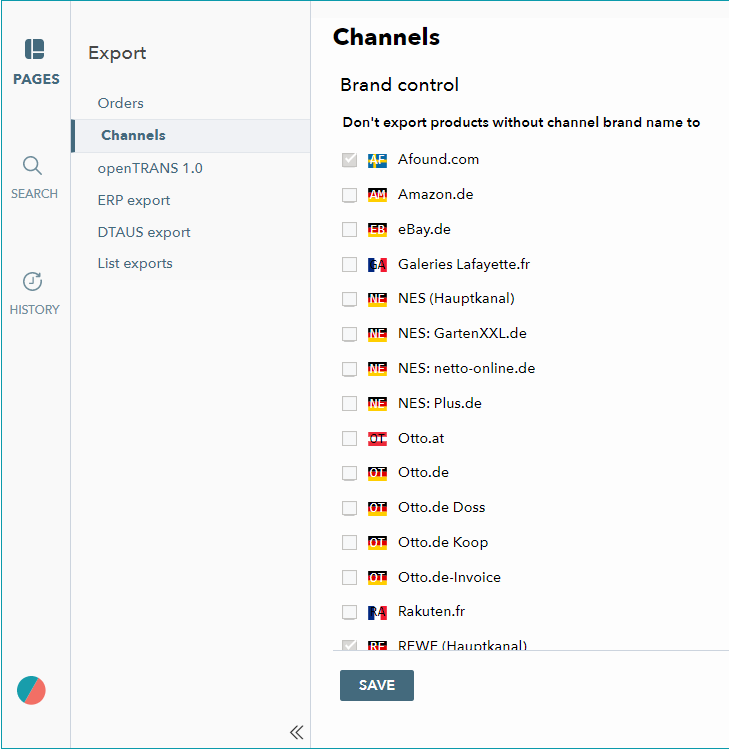
Checking boxes in the section "Brand control" will cause brands without a channel-specific assignment not to be exported to the channel in question.
3. MENU "CHANNELS > [YOUR CHANNEL] > SETTINGS"
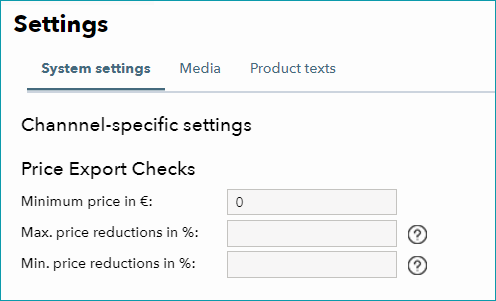
You can also define a minimum price and a minimum and/or maximum price reduction for each channel in your channel settings via "Channels > [Your channel] > Settings". Please contact Tradebyte if you would like to use this feature. With a minimum or maximum reduction in place, TB.One only exports prices to the channel if you also indicate a "Former RP". If the configuration of surcharges and discounts at "Basic data > Prices > Surcharges/Discounts" would cause a price to fall below the minimum value defined here, or exceed the maximum price reduction, the product will no longer be exported to the channel, and an entry in the SolutionCenter's error list will be created.
4. MENU "ADMIN > EXPORT > ERP EXPORT"
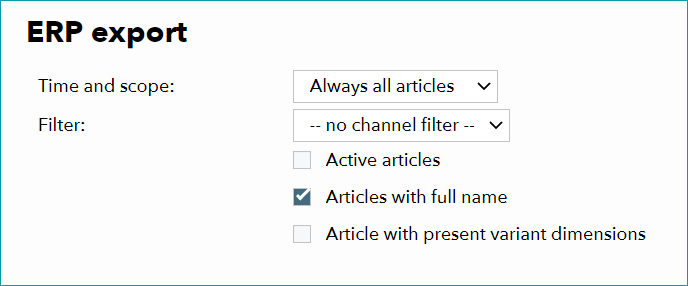
Here you can choose, when to export articles to your ERP System. In the first line, you can select the time and scope of your article export. You can choose to always export all articles ("always all articles"), only export after changes were made ("after article editing"), or only to export once, upon article creation ("once after creation").
The filter allows you to limit the export to one channel and several article criteria.
5. MENU "ADMIN > EXPORT > LIST EXPORTS"
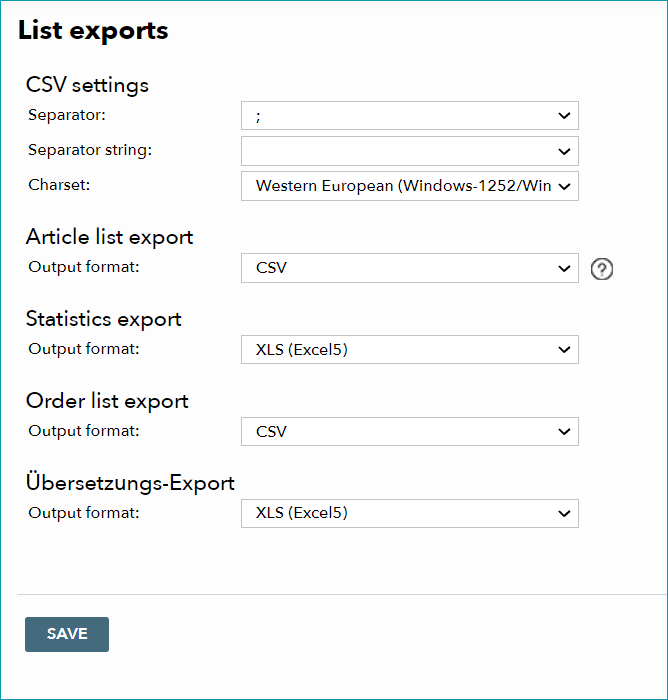
Here you can configure the list exports. In the drop-down menus "Output format" you can choose among XLS (up to Excel 2003), XLSX (as of Excel 2007), and CSV for the article list export, statistics export and translation export. The order list export always uses the CSV format and it will be automatically used for the article list export, if the list contains 1,000 lines or more.
Additionally, you can choose a separator, separator string and a charset for the CSV export here.