TB.One > Product and Article Data > Clusters and Internal Categories > Clusters > The Cluster Menu and its Filters
The Cluster Menu and its Filters
Clusters: Overview and Tasks

When you open the cluster menu ("Basic data > Classification > Cluster"), it will show a section titled "clusters". Under "Filter Cluster" you can define filters which are valid for the whole menu (a detailed explanation of the filters can be found below). To the right of the filters, four charts show different tasks and the number of clusters for which these tasks are due.
▪The first chart is labeled "All tasks". It shows how many tasks are due for your clusters.
▪The chart "Critical" shows the number of tasks that are critical and should be completed quickly, because the affected data cannot be exported in the current state.
▪"Warnings" are created when the respective cluster was exported, but the corresponding data should be updated/amended in order to prevent future export errors.
▪The chart "Alarms" shows the number of cases, where the cluster and the associated products lack channel properties. This would cause errors during export.
The charts also show the proportional share of of the total tasks constituted by each type of task (non de-saturated share of the circle diagram).
To the right of the charts, the corresponding tasks are listed. They are marked with colored icons, that indicate the type of task (critical, warning or alarm). If you would like to view all tasks, click on the button "See all" on the top right of the list. Selecting a task will open a new list in the section titled "Cluster name" on the bottom left. It shows all clusters, for which the selected task should be completed.
Click on one of the clusters to open the corresponding editing window on the bottom right (the menu always opens on the tab "Channel category"). Here, you can directly edit the cluster to complete the task. How to edit and configure clusters is detailed on the page "Creating and Configuring Clusters".
The following tasks are included in this evaluation and overview:
▪Clusters without a channel-specific category (if one or more of the products they are assigned to are missing a category)
▪Clusters without a commission group for the channel Otto.de (if one or more of the products they are assigned to are missing the commission group)
▪Clusters with outdated category assignments
▪Clusters with values that were deleted
Filters
The filters in this menu relate to the list of clusters in the page's lower section. You can filter for specific clusters by their import keys or note texts. Type one of those values into the corresponding free text field and press the "enter" key. In the drop-down menu below this field, you can select a task to filter by. Selecting a task will instantly reload the list and apply the filter settings.
If you need more detailed filtering options, click on "All filters" to access the full filter menu:
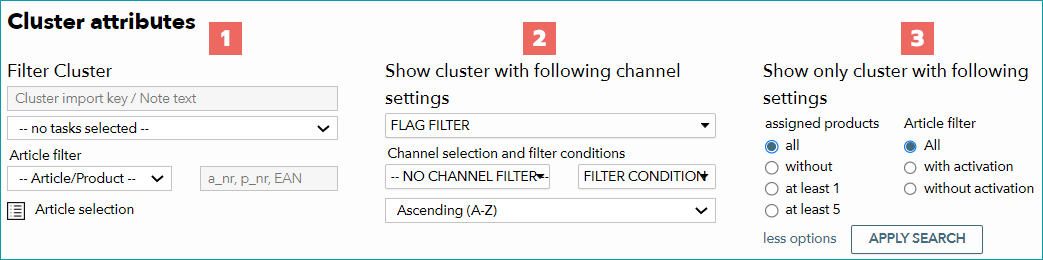
In addition to the options listed above, the expanded menu allows you to filter by assigned products, channel settings and product/article activation (a cluster is considered active if it is assigned to an active product). The menu is subdivided into three sections:
NUMBER |
FILTER |
|---|---|
|
On the left, you can see the section "Filter Cluster". This section contains the filters described above (import key, note text, and task). Additionally, you can filter by the clusters' assignment (based on article number, article-ID, EAN, product number or product-ID). To do so, select the type of number you want to filter for from the drop-down menu and enter the number in the free text field on the right (by default this field shows the text "a_nr, p_nr, EAN"). |
|
In the central section "Show cluster with following channel settings", you can choose any number and combination of flags, channels, and conditions to filter for. Additionally, you will find a drop-down menu you can use to change the order in which your results are displayed at the bottom of this section (e.g. sort by cluster name or by number of assigned products). |
|
The menu's right section is titled "Show only cluster with following settings". Here you can choose whether the clusters need to be assigned to zero, at least one, or at least five products to appear in the list. The setting "All" means, that all clusters will be displayed, irrespective of the number of products they are assigned to. Additionally, you can restrict the list to clusters with or without article activation. |


Click on the button "Apply search" to activate the filter settings, or on "less options" to hide the advanced filtering options. To reset the filter, open the tab "Pages" in the left navigation bar and click on "Reset search".
Editing Options in the Left Navigation Bar
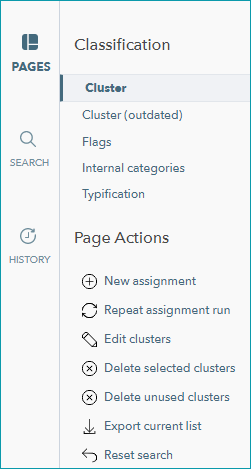
On the tab "Pages" you can find the following page actions:
COMMAND |
DESCRIPTION |
|
|---|---|---|
New assignment |
Click here to create a new cluster. To do so, specify an import key and a note text. The rest of the information can be configured in the cluster menu, as described above. |
|
Repeat assignment run |
Click on "Repeat assignment run" to transfer any changes regarding your clusters to the products. |
|
Edit clusters |
This is a bulk editing option that will change all selected clusters simultaneously. Opens an editing window for the selected cluster(s). Cluster bulk editing is described in detail here. |
|
Delete selected clusters |
Deletes the selected clusters. You will be asked to confirm your selection before the clusters are deleted. |
|
Delete unused clusters |
Clicking on this option will open a list of all unused clusters (i.e. clusters that are not assigned to an active product). Clicking on "Delete" will remove these clusters. |
|
Export current list |
Export the clusters that match the current filter settings as a CSV file. The file can be found at "Data exchange > Directories > Archive". Exported files contain all configurable information. |
|
Reset search |
Resets the filter. |
For further information, see also:
•Assigning clusters manually
•Assigning clusters via CSV
•Assigning clusters via XML
•Comparison of internal categories and clusters
•Configuration of the application of clusters
•Defining clusters (overview)
•Creating/configuring clusters
•Bulk editing clusters
•Using clusters
•Import settings: assigning categories via clusters