TB.One > Product and Article Data > Clusters and Internal Categories > Clusters > Bulk Editing Clusters
Bulk Editing Clusters
If you have created a large amount of clusters, adjustments such as adding a new component or a channel activation may take quite some time. Therefore, TB.One allows you to edit clusters in bulk.
Open your clusters at "Basic data > Classification > Cluster" and check the boxes for all clusters you would like to edit. Clicking on the checkbox in the header will mark the boxes for all shown clusters.
ATTENTION: |
Once you have selected the clusters you want to edit, open the tab "Pages" in the left navigation bar and click on "Edit clusters". In the resulting popup, you have the same assignment options as during the editing of individual clusters. Each assignment field is preceded by an editing dropdown, where you can choose to either delete or change an assignment.
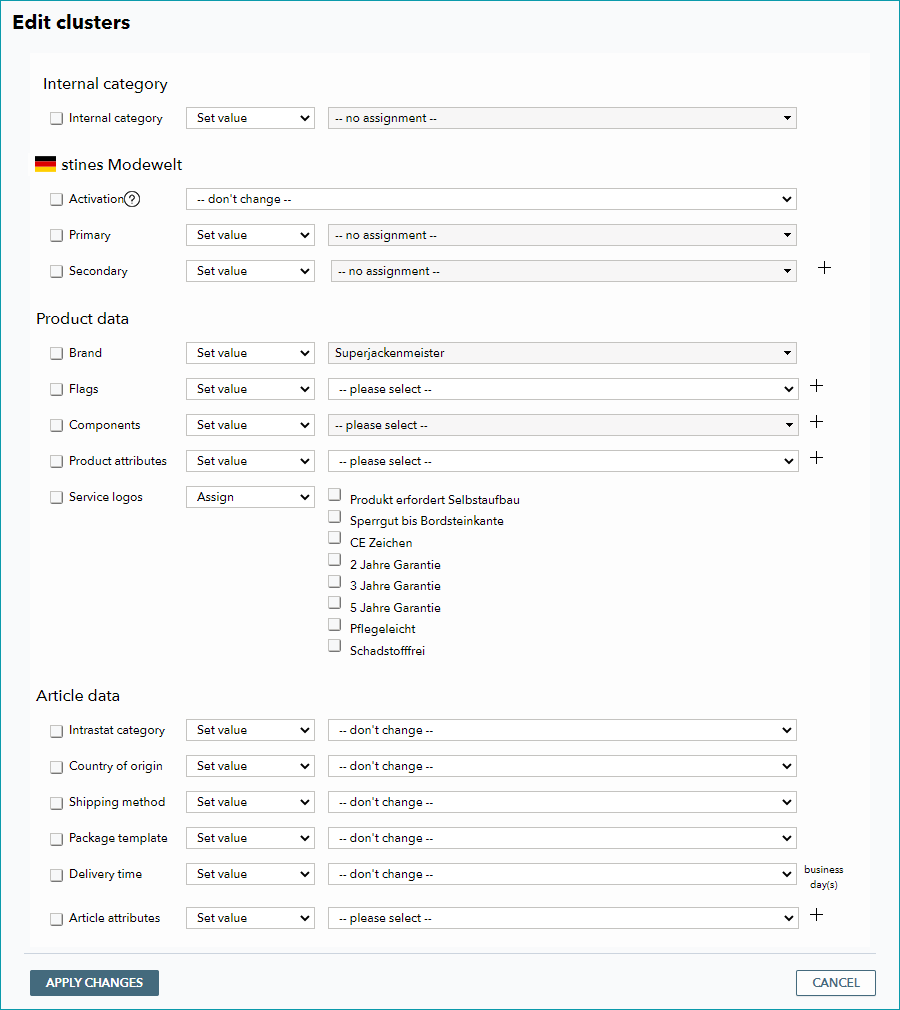
No matter how you configure the settings, the changes are only taken over if you mark the checkboxes in front of the respective rows before you click on "Apply changes". This is a security feature.
Depending on the section, you have different editing options. Detailed information on these editing options can be found in the table below.
INTERNAL CATEGORY |
|
|---|---|
OPTION |
EFFECT |
Delete |
Deletes the internal category chosen in the right drop-down menu from the clusters which were selected for editing. |
Set value |
Replaces the current value for the internal category with the value selected in the drop-down on the right, i.e. all currently selected clusters receive the specified internal category. |
Deleting the currently assigned internal categories for all clusters is only possible if all selected clusters have the same value for "Internal Category". Any changes require you to select a category from the drop-down menu. |
|
CHANNEL GROUPS |
|
OPTION |
EFFECT |
Activation |
Configures the clusters so that the affected products are activated or deactivated for the respective channel. |
Classification/Product type/Primary |
Changes the respective assignment regarding individual channels for the selected clusters. Which assignments are available depends on the channel. |
Secondary |
If the channel allows a secondary category, you may change the assignment for the selected clusters. |
If the channel has commission groups, you may change the channel-specific assignment for all currently selected clusters. |
|
EDIT OPTIONS |
|
Delete |
Deletes the assignment chosen in the drop-down on the right from the selected clusters. |
Set value |
Replaces the current values of the clusters with the value selected in the drop-down on the right. |
PRODUCT DATA |
|
The assignments in the section "Product data" generally follow the same rules. Here you assign brands, flags, components, product attributes (including values), and service logos, which are transferred to the products when the clusters are applied. If an element allows more than one assignment (such as flags or components), the properties selected here are added to those that already exist at the clusters. If an element allows only one assignment (e.g. brand), and if there is already an assignment for the selected property, the existing value is replaced. Multiple values can be assigned to a single attribute. If one of the clusters affected by the change already contains values for one of the selected attributes, the existing values will be replaced with those from the bulk edit. |
|
ARTICLE DATA |
|
In the section "Article data" you may set or delete Intrastat information, a country of origin, a shipping type, a package template, the delivery time in business days, and article attributes. |
|
Apply the changes to the selected clusters by clicking on the button "Apply changes" at the bottom.
ATTENTION: |
Once you are done with bulk editing, open the tab "Pages" in the left navigation bar and click on "Repeat assignment run" to transfer the cluster settings to the products.
For further information, see also:
•Assigning clusters manually
•Assigning clusters via CSV
•Assigning clusters via XML
•Comparison of internal categories and clusters
•Configuration of the application of clusters
•Defining clusters (overview)
•Overview of the cluster menu and its filters
•Creating/configuring clusters
•Filtering clusters
•Using clusters
•Import settings: assigning categories via clusters