Marketplaces > Marketplace Integration > Basic Settings (Marketplace Integration)
Basic Settings (Marketplace Integration)
ATTENTION: |
Your master data are ready? Then proceed as follows:
•Check the settings in the channel menu
•Check the basic data
Settings in the Channel Menu
After Tradebyte has activated the channel, you will find an entry for it (and all booked subchannels) in the menu “Channels > [Your channel] > Settings”:
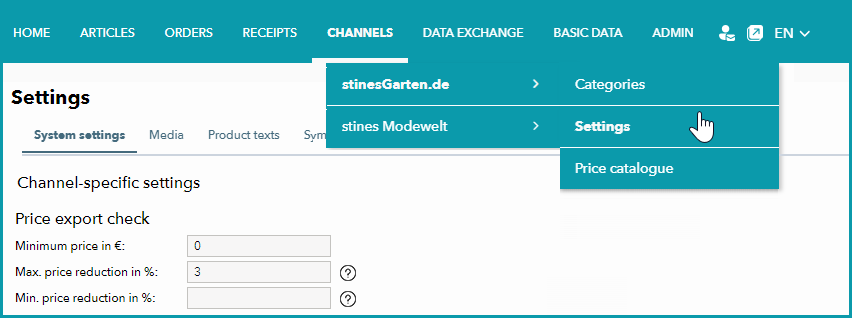
Fig. 1.: This menu will appear in the navigation once your channel has been activated.
ATTENTION: |
Create Basic Data
Switch to the “Basic Data” menu in the main navigation.
Check and add the following settings in the submenus if necessary
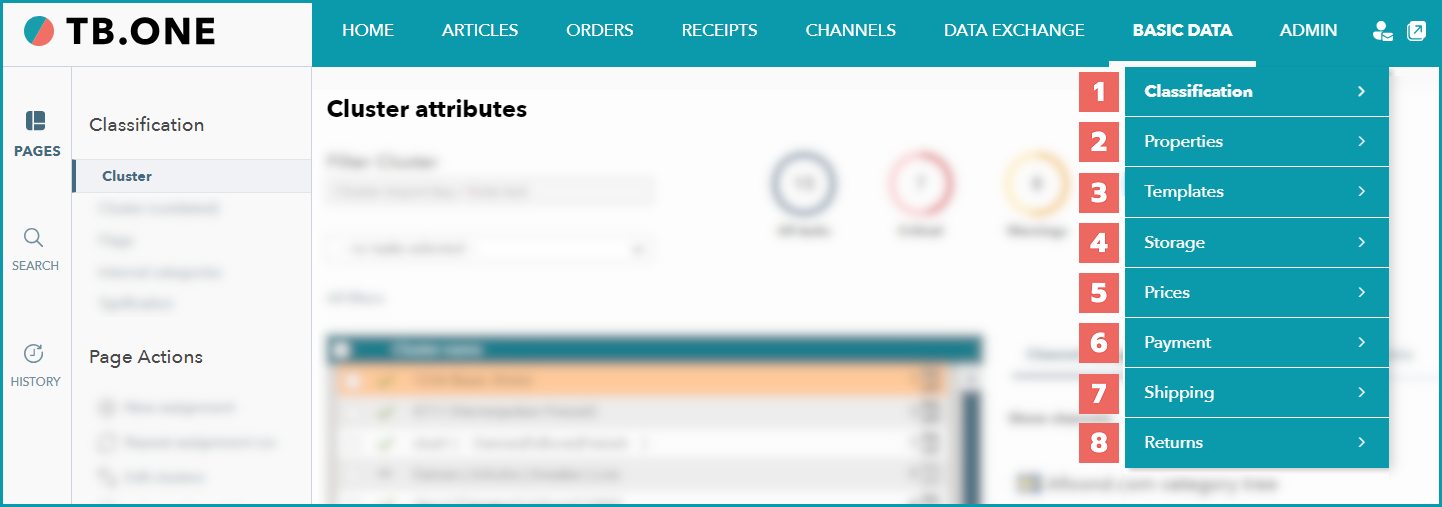
Fig. 2: Check and add data in the submenus.
1. Classification
Check clusters and/or internal categories at “Basic data > Classification > Cluster / Internal categories”.
The decision between clusters and internal categories depends on various factors. Find out how to work with internal categories or clusters on this page.
2. Properties
Check components and attributes at “Basic data > Properties > Components / Attributes”.
If necessary, enter an alternative name or translation for components in the name and key fields. Find out more about working with components and attributes.
TIP: |
Check brands at “Basic data > Properties > Brands”.
Assign your brands to the channel brands. If necessary you can enter an alternative name or a channel-specific brand key. Find out more about brands and the brand creation here.
3. Templates
Check title profiles at “Basic data > Templates > Title profiles”.
Check row “X-13: Title profile” on your Channel Sheet to find out whether your channel uses title profiles.
Upon channel activation, TB.One automatically creates a title profile in this menu. Find detailed information on title profiles here.
4. Storage
Check the storage settings at “Basic data > Storage > Warehouse settings".
Check:
•Export ratio
•Stock reduction
•Upper stock limit
•Delivery times
You can check the current stock quantities that are exported to the channels in the article list (“Articles > Article list”). Hover the cursor over an article’s stock number to see the stock quantities for each channel.
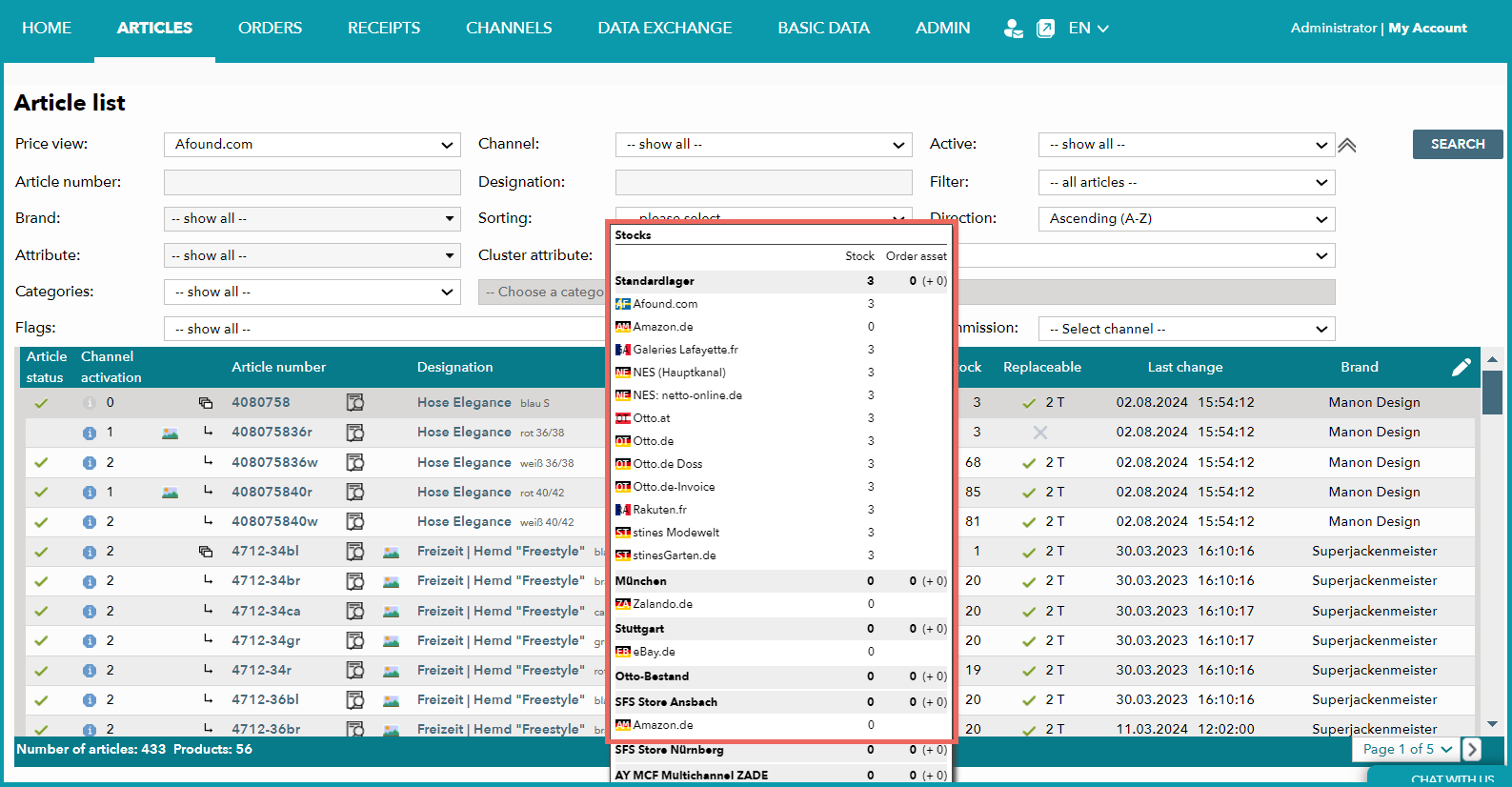
Fig. 3: Stock numbers in the article list.
TIP: |
5. Prices
Check the surcharges and discounts at “Basic data > Prices > Surcharges/Discounts”.
You can configure channel-specific surcharges and discounts there.
Check base prices at “Basic data > Prices > Base prices”.
See the row “X-02: Base prices” on your Channel Sheet to find out whether you have to provide base prices for your channel.
If you need base prices, check whether the required units are available at “Basic data > Prices > Units”.
Create them if necessary and add the corresponding keys. When you’ve created new units, assign them under “Basic data > Prices > Base prices”, so TB.One can perform valid calculations during export. Find more information on base prices here.
6. Payment, Payment Types, and Payment Service Providers
Check the payment types at “Basic data > Payment > Payment types”.
After the channel has been activated, the necessary payment types and the payment methods are also created and activated automatically. For some channels, this happens when the first order is placed. You can find out how to set up payment methods here.
Configure payment service providers at “Basic data > Payment > Payment service provider”.
You can create the required payment service providers in this menu.
TIP: |
7. Shipping
Channels have different requirements for your shipments. Find details on the respective Channel Sheet in Section G. You can find an overview of the order processing settings here.
Configure the shipping types for each channel at “Basic data > Shipping > Shipping types”.
By default, the shipping type “DHL standard parcel” is assigned to each article. For a guide on the creation of shipping types, click here.
Activate package types at “Basic data > Shipping > Package types”.
Create a new package type if necessary. This page shows how to create package types.
8. Returns
Define a return address at “Basic data > Returns > Return addresses”.
Create a global and/or a channel-specific return address by clicking on the page action “Create new return address” in the left side bar.
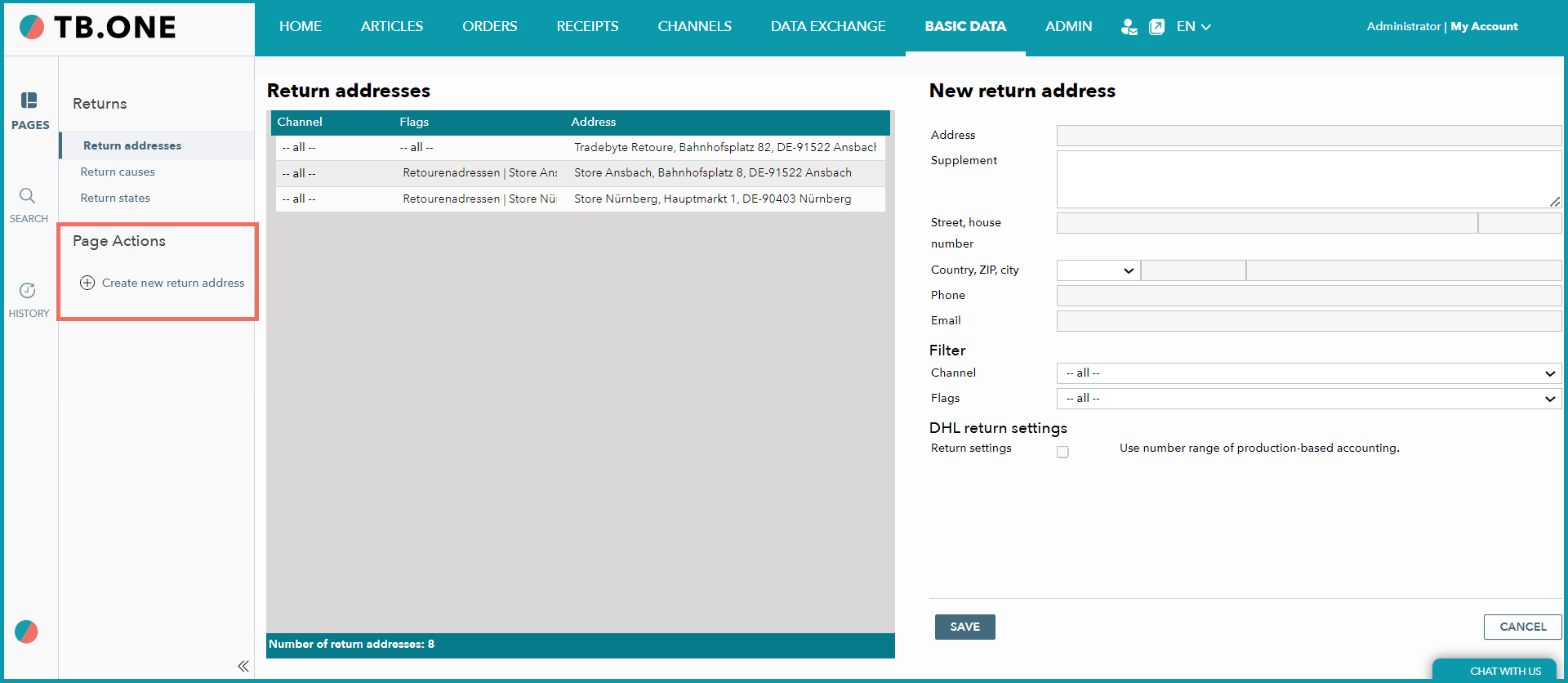
Fig.4: Creating a new return address
TIP: |